

One of the first and most dependable cloud storage services is Dropbox. Dropbox is a cloud storage application that works with your web browser; integrating it into File Explorer makes it easy to access the file, so the user doesn’t have to keep going back to the Dropbox website to manage the files. Since its 2008 launch, it has provided one of the most user-friendly GUIs and a pay-as-you-use subscription. It is the most well-known cloud storage service; You don’t need to sign in to Dropbox’s website to access your files; navigate your file explorer. How can you start the process of adding dropbox to file explorer? You can install their software on Windows Explorer to sync files quickly. You receive 2 GB of free storage as part of the basic—Dropbox subscription, which you can use to sync your data across numerous devices.
While installing Dropbox on your Windows 10 PC can make it handier, it is still a valuable solution to save files remotely in the cloud. You can replicate your Dropbox files on your hard drive and access them through File Explorer by installing its software on your computer. You can add Dropbox to file explorer once installed on your operating system.
Want to gain more detailed insight on adding dropbox to file explorer? Keep on reading!
Contents
Advantages of Adding Dropbox to File Explorer
It has a lot of advantages, some of which are described below:
File Access Becomes Simpler
Providing simple access to files is the main benefit of integrating dropbox with File Explorer. To access our files stored on Dropbox, we must first visit its website and log in.
Its benefit is that it only takes a few clicks to access dropbox files. It becomes similar to our hard drive, allowing for simple file addition and transfer. It saves time and money.
Upload Folders in Sync
Refrain from letting a hardware failure or theft cause the loss of your priceless files. You may sync them to the cloud with Dropbox’s automatic backups and access dropbox folders using various devices from anywhere.
It is simple to sync your crucial files or folders once you know how to add a Dropbox folder to pc. Dropbox can be used as a website for hosting and storing and cropping images.
Files Sharing
If Dropbox is added to the computer, you can move Dropbox files quickly and easily in a few steps. On the internet, there are more processes involved, but not here. The process will be demonstrated to you later in this post. Dropbox transfer allows you to share files securely with recipients even if they do not have a Dropbox account. You can send files up to 100MB with a free account. It can also transfer by adding a dropbox folder to the computer.
How can we make a Dropbox Shortcut?
- Click on dropbox.com.
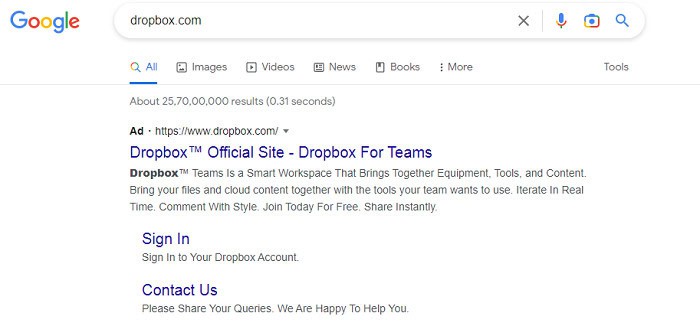
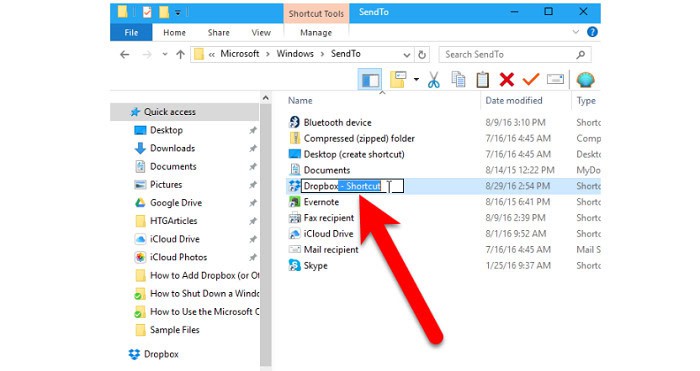
- Go to the folder and place your shortcut.
- In the More menu, select shortcut.
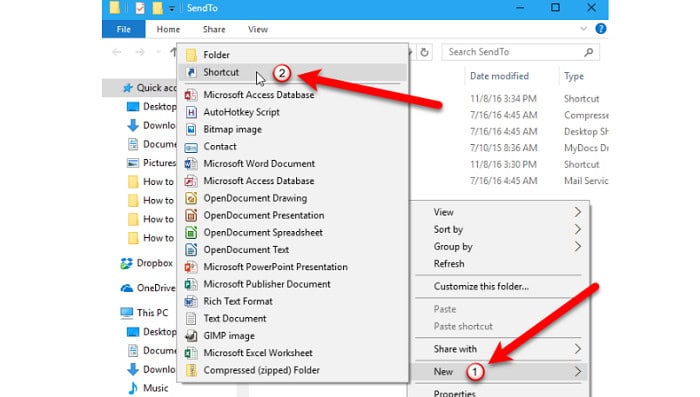
- Give your shortcut a name and press Create.
See Also: Best IPTV player for Windows 10
How can I begin Adding Dropbox to File Explorer?
Let’s begin by going through the advantages of adding a dropbox folder to a computer before figuring out how to implement it on Windows OS.
We’ll take easy steps to achieve our aim. Carefully follow the directions provided.
To expedite the process, you may also join up with Google.
You will immediately free up 2 GigaBytes of space once you have made your free No Cost Enrollment. You can reach the next part if you already have a Dropbox account.
If you don’t have one, you can make one with 2GB of storage for free and add Dropbox to Windows explorer.
Install the Dropbox program.
To install the Dropbox program, follow these steps.
- Click the Download button, and it will download the Dropbox installer file.
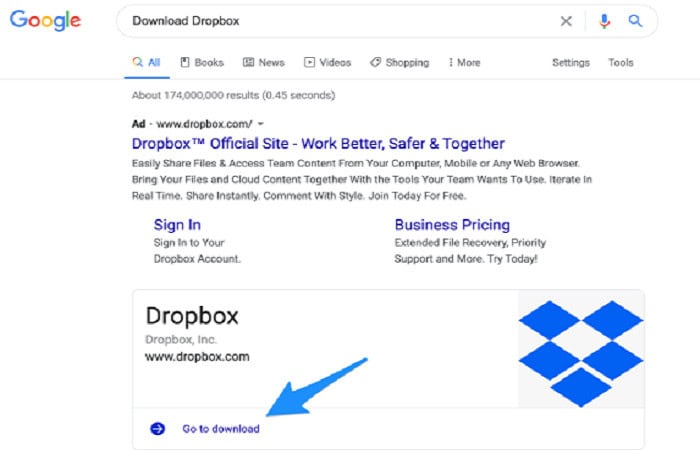
- When you open that file, Dropbox will startFile Explorer downloading for you immediately.
- The installation procedure is the same as for any other piece of software.
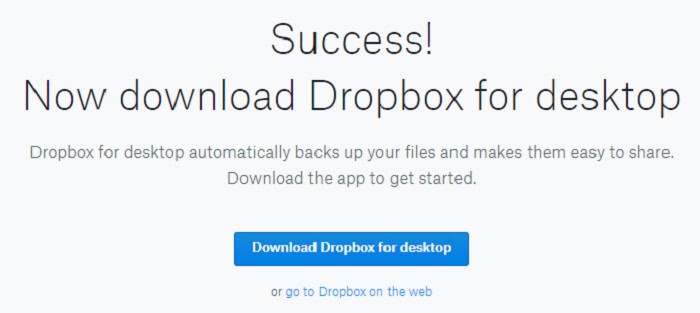
- Windows OS is installed in the Dropbox desktop application.
Put documents and directories in the Dropbox folder.
Now that you have downloaded the Dropbox program, proceed with putting the documents and directories in the dropbox folder.
- To launch File Explorer, use the keyboard shortcut Windows key + E.
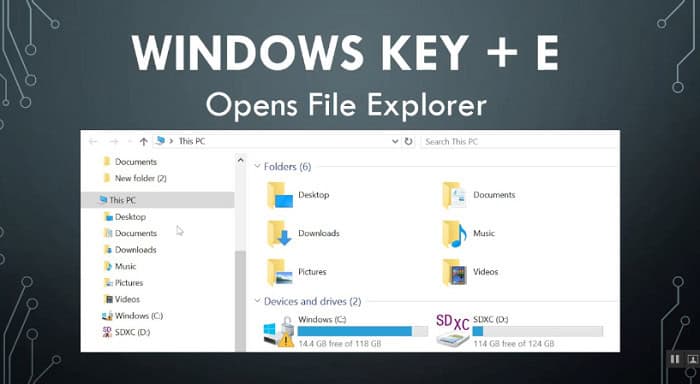
- A Dropbox folder will now be visible on the File Explorer window’s left side.
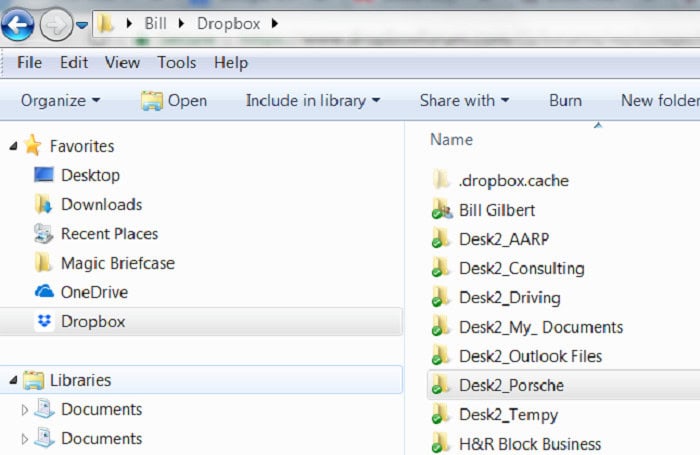
- To access the Dropbox folder, click on it.
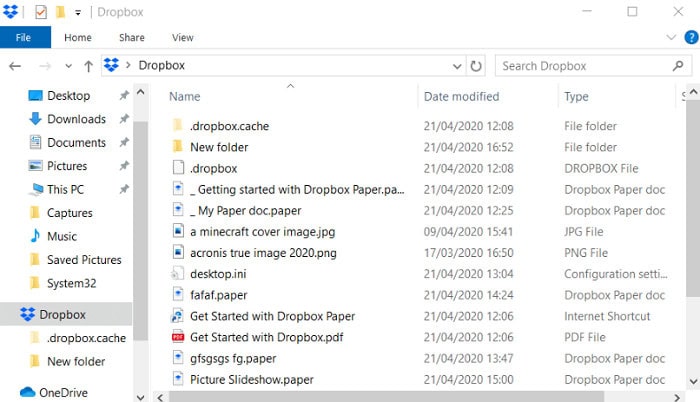
- To add files to your online storage, drag & drop them into the folder.
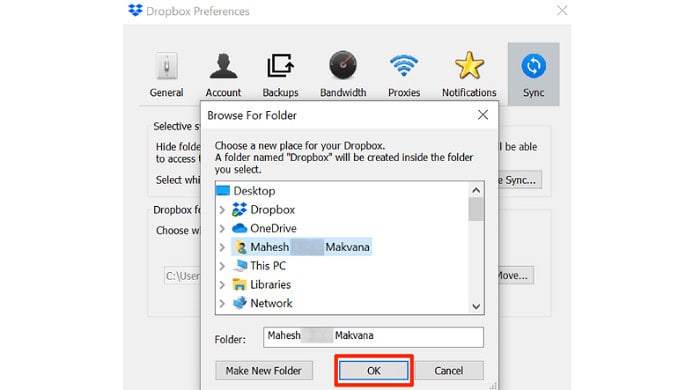
- By selecting New from the context menu when right-clicking inside the DB folder in explorer, you may add new files to Dropbox. Then, choose the Folder option.
See Also: Free sound boosters for Windows 10
For Immediate Access, pin to Start
- Adding a shortcut to Dropbox in the Quick Access Bar completes the process of adding Dropbox to File Explorer.
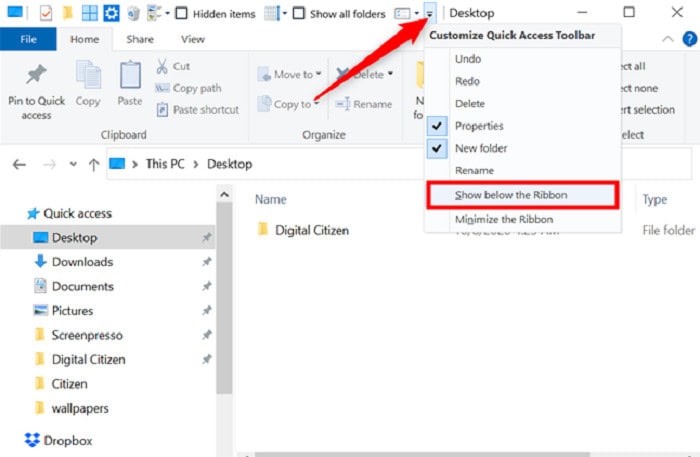
- To do this, in the file explorer, right-click Dropbox and choose Pin to Quick Access.
- The file explorer fast access bar also has the Dropbox icon pinned to it.
- Additionally, you can access Dropbox from the Start menu for simple file syncing and storage.
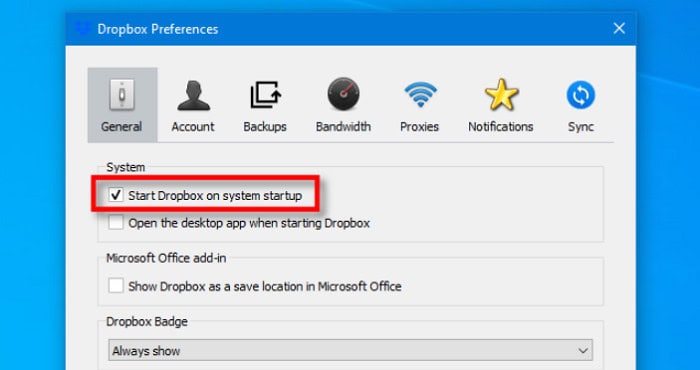
- Using this technique, you may sync folders, free up hard drive space, and upload data straight to Dropbox. We integrated Dropbox into the fast access bar and the file explorer until then.
FAQs
What is needed to add Dropbox in File Explorer?
Activate Windows Explorer. In the address bar, type %HOMEPATH%/Dropbox. On your PC, create a shortcut by adding dropbox to file explorer. Navigate right away to the Dropbox folder. Do right-click on the Dropbox folder. Choose 'Make Alias' (or Make Link on Linux).
Why did the Dropbox symbol vanish?
The Dropbox icon may occasionally appear to 'disappear' if your computer's desktop program isn't running. You can restart the program or download (or re-download) the Dropbox desktop application to fix the issue. When prompted, sign in to your Dropbox account to proceed.
Do you want to add Dropbox on your home screen?
On your home screen, hold down the long press key. Choose the Widgets icon. To Dropbox Folder, scroll down. Drag the Dropbox icon to your home screen with a long press.
What are Dropbox's top features?
Regular Features Basic characteristics: filing cabinets. Get a file at any time. Advanced data security features include file recovery and version history. Advanced sharing authorizations. Contemporary productivity tools: FileSonic Paper Locking a file Team Folders: Information that belongs to a group rather than a single person.
Conclusion
We hope this article on adding Dropbox to File Explorer is helpful. This article covered an important how-to, and the procedures mentioned above are pretty detailed and simple to implement.

Follow me to stay updated on the latest technology and computer news from around the world. Join me in spreading the love for tech!